Create images from text, edit photos over many rounds and split any picture into editable layers with Seedream 5.5, the newest Seedream model.
Loading Seedream 5.5...
Seedream 5.5 generates images from text, edits reference images and separates a picture into layers. It supports repeated edits, consistent characters and transparent backgrounds.
Edit with up to ten reference images, or split one image into a base image and transparent PNG layers. Choose 1K, 1.5K or 2K output and see the credit cost before generating.
Seedream 5.5 focuses on editing you can repeat, assets you can reuse and text you can read. These are the improvements you can use in the workspace above.
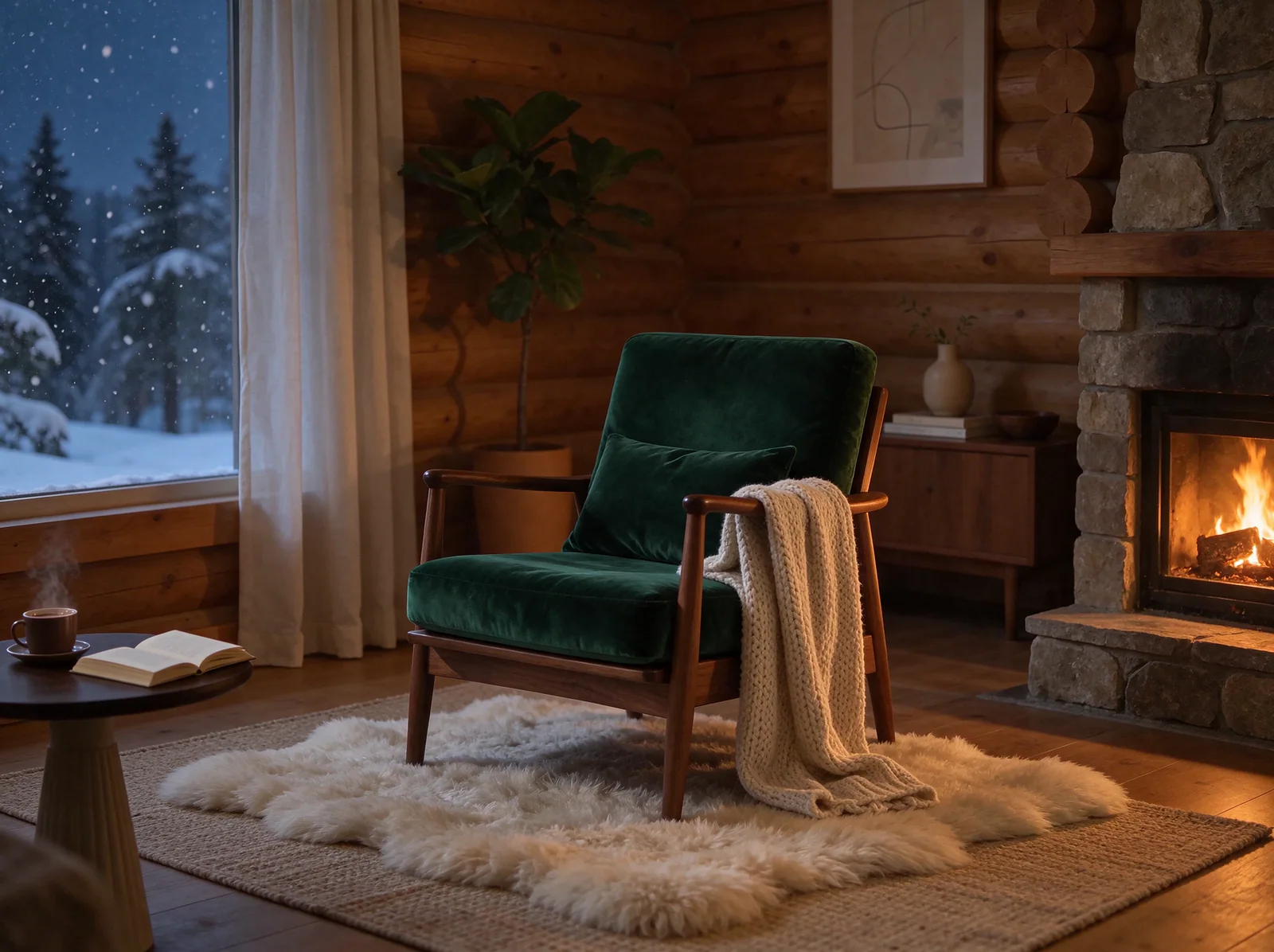
Change one detail, then another, then another. Seedream 5.5 keeps the regions you did not mention intact across many rounds of editing, so faces, products and backgrounds do not drift as you refine an image step by step. Even after as many as 100 rounds of edits, small details such as a ring or a pair of glasses can still be changed precisely.
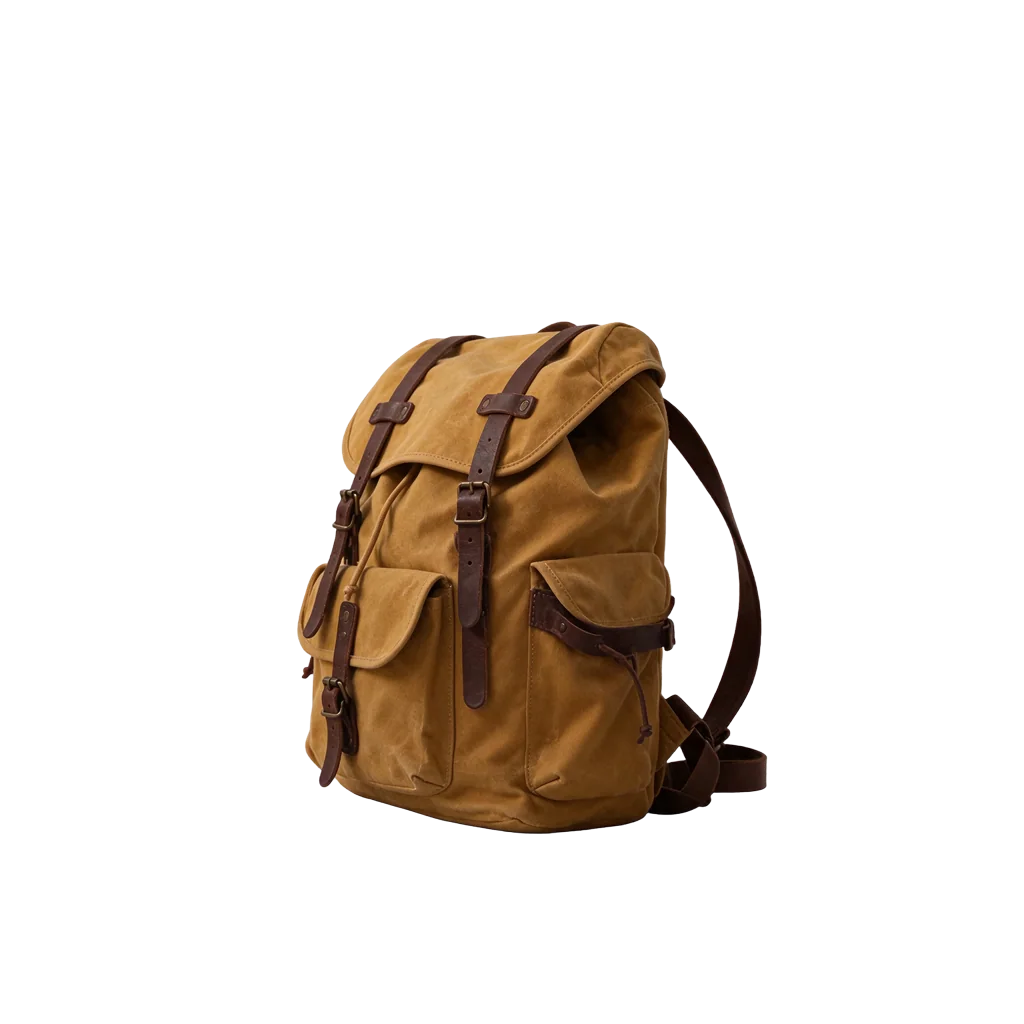
Set the background to Transparent and Seedream 5.5 generates a PNG with a real alpha channel. Product cut-outs, stickers, icons and logos are ready to place on any design without a separate background removal step.
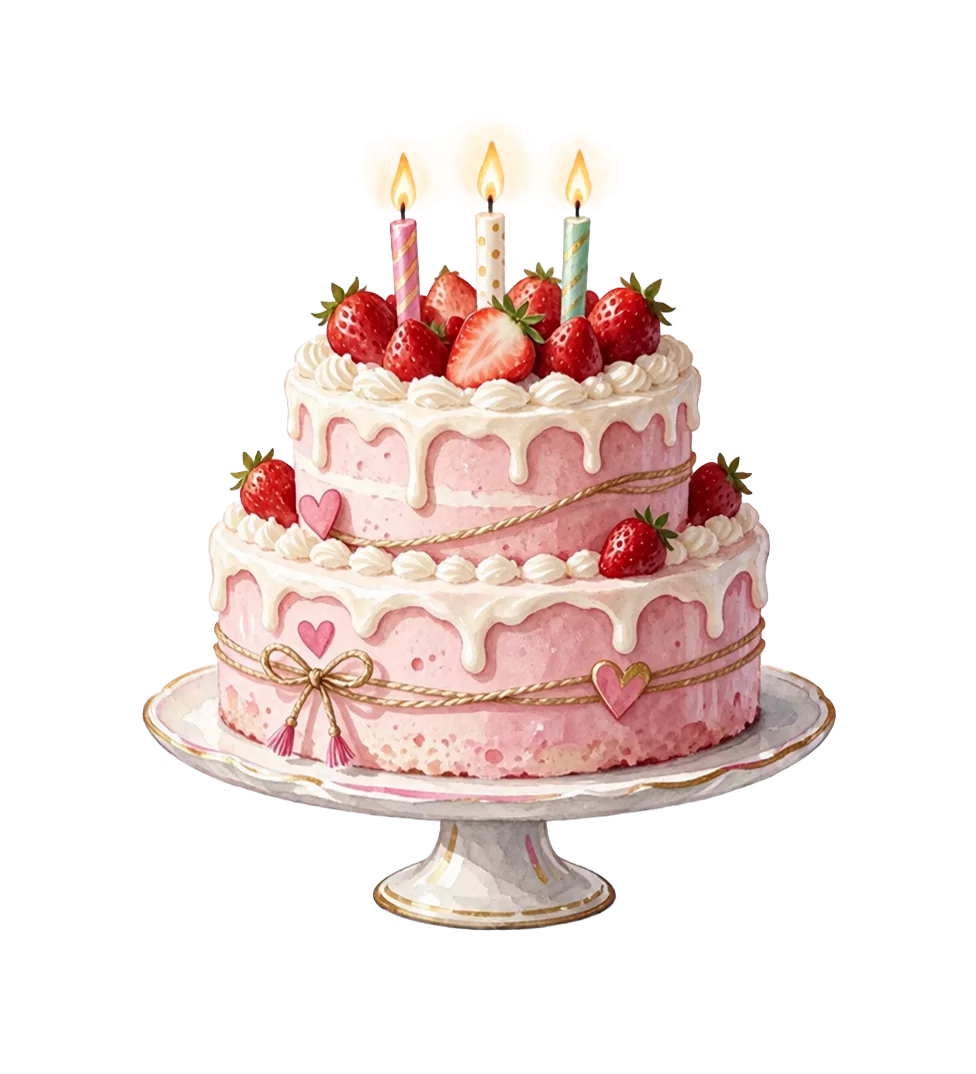
Upload one image and receive a base image plus separate transparent PNG layers for the people, objects and text in it. Each layer can be moved, recolored or replaced in your design tool.
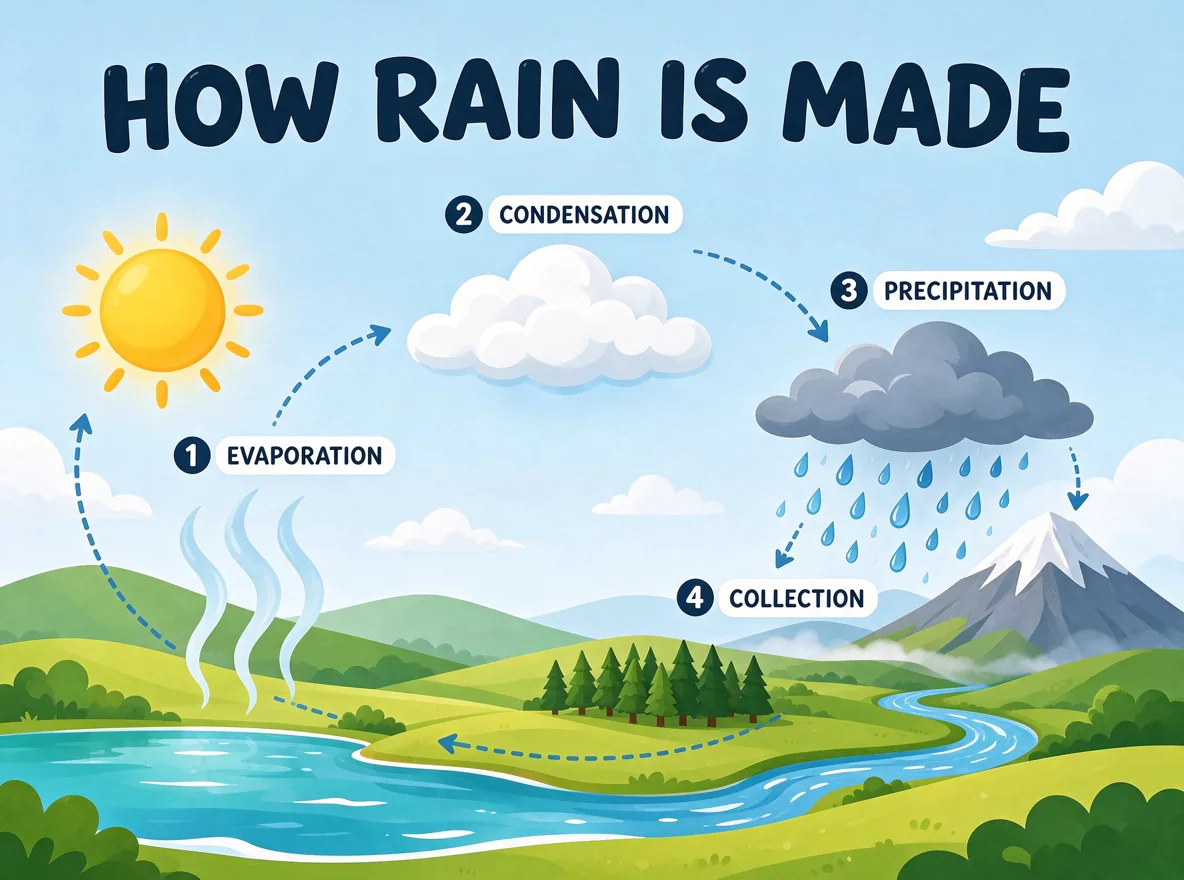
Headlines, labels, menu items and dense small print come out sharper and with fewer broken characters, which makes Seedream 5.5 practical for posters, packaging mock-ups and social graphics that need readable words.
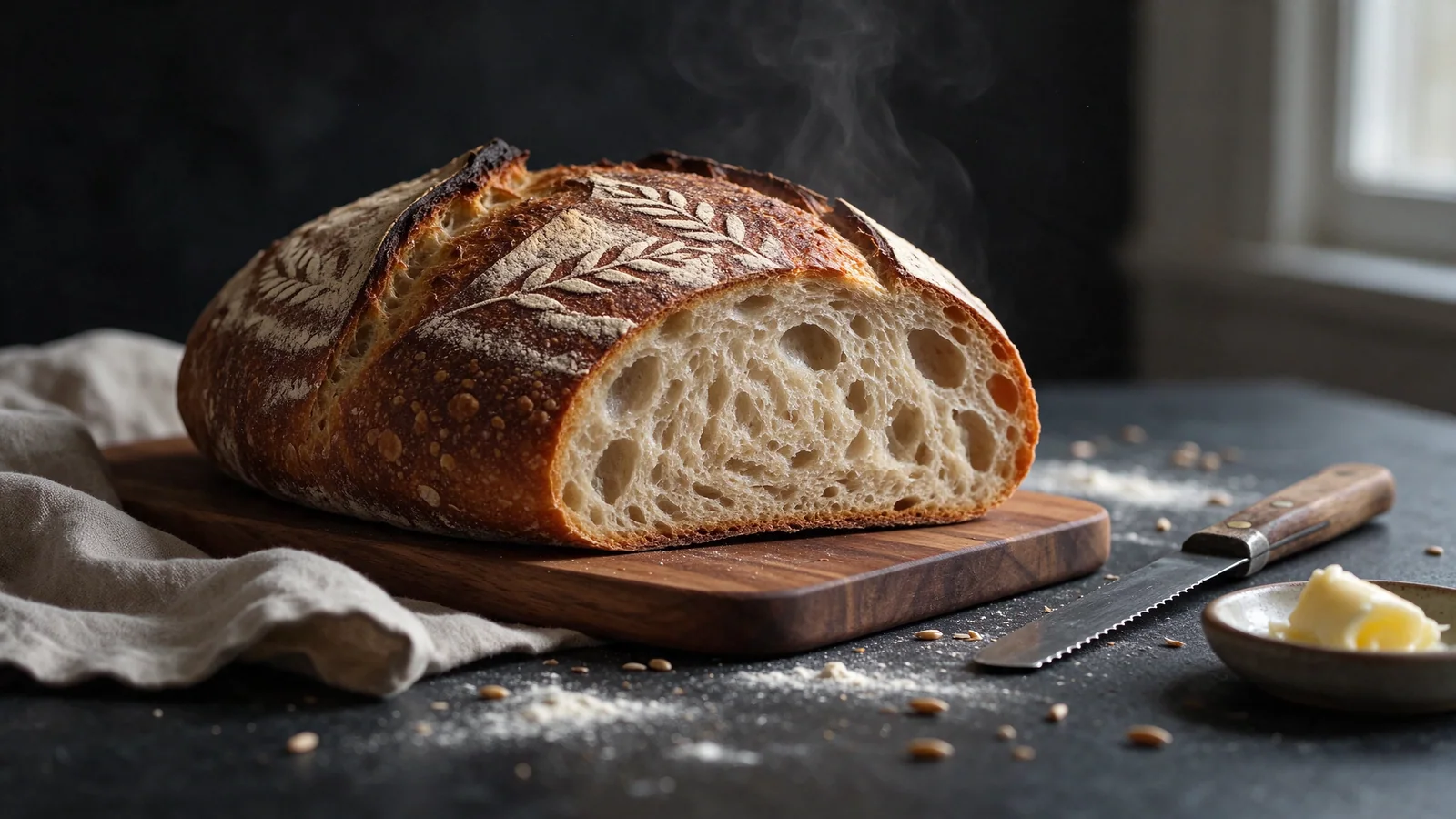
Skin, fabric, metal, glass and food show more convincing texture and lighting, so photographic prompts look closer to a real shoot and need fewer retouching passes.
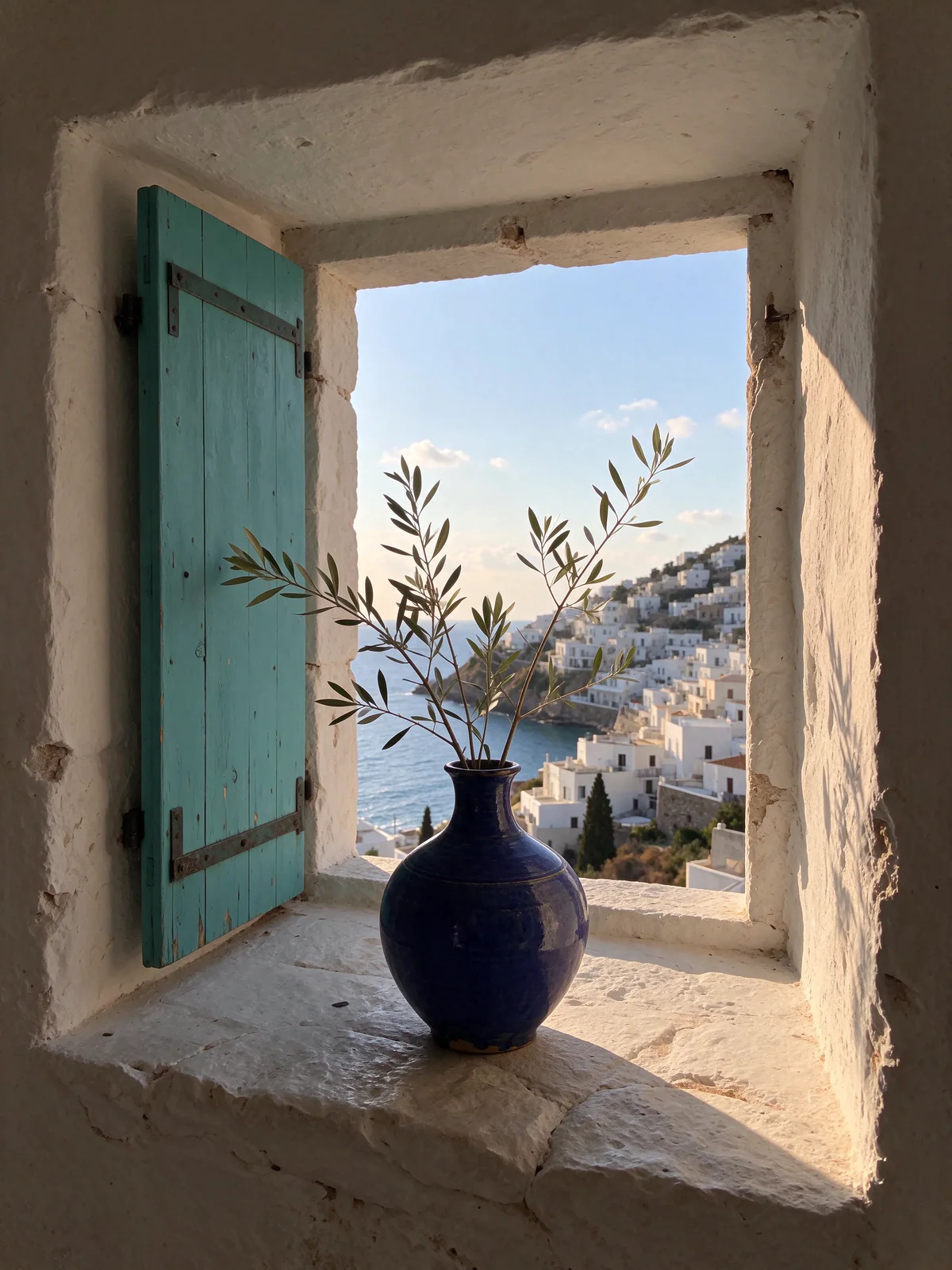
Use your earlier results as references to keep the same character, mascot or lettering style across a series of images, from a single portrait to a full campaign.
Switch between modes at the top of the workspace. Each mode keeps its own settings, so you can move from generating to editing to separating layers without starting over.

Write a prompt in any language and pick an aspect ratio from 1:1 to 21:9, a resolution of 1K, 1.5K or 2K, and a background. Choose Transparent when you need a cut-out subject on a clear PNG, or Solid when you want a complete scene.
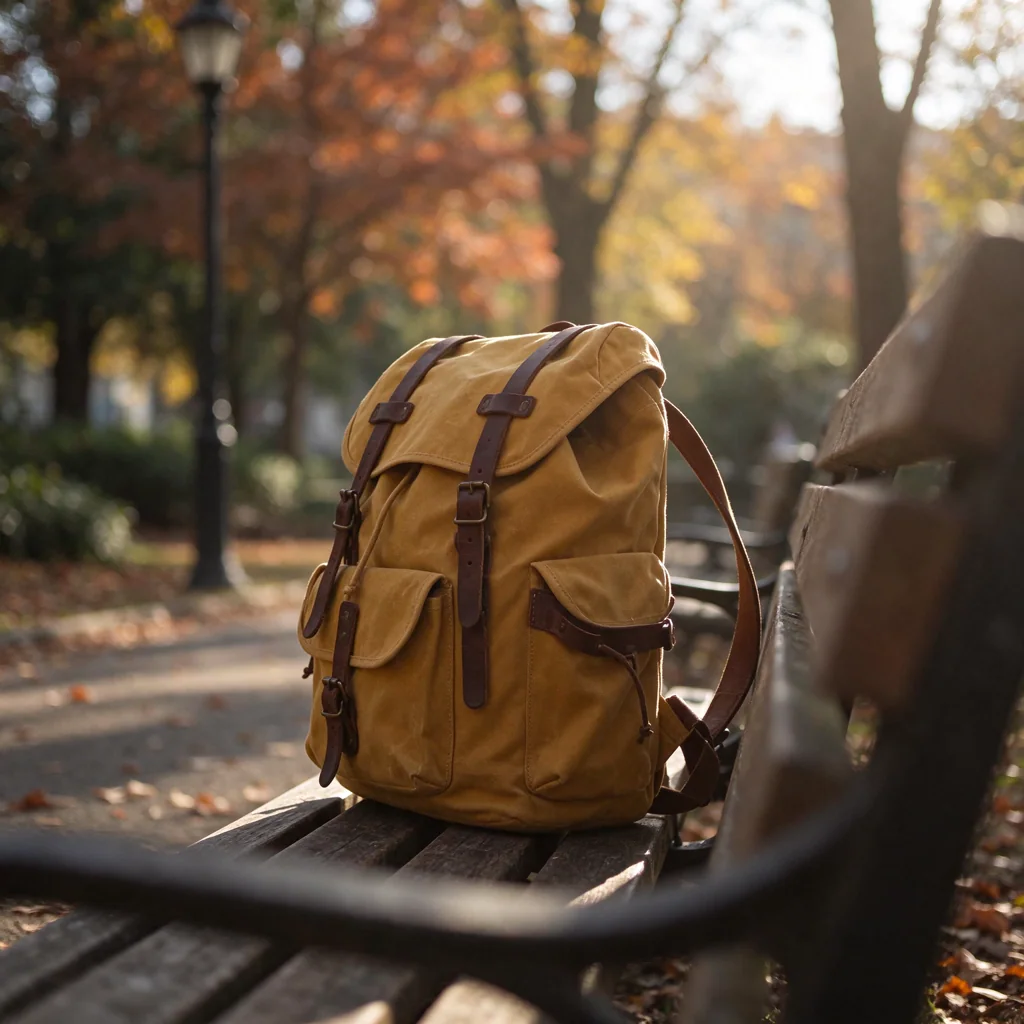
Upload up to ten reference images and describe the change: replace a background, swap a product color, combine a character with a new scene or restyle a photo. Keep the aspect ratio on Auto to match your reference, or set a new one.
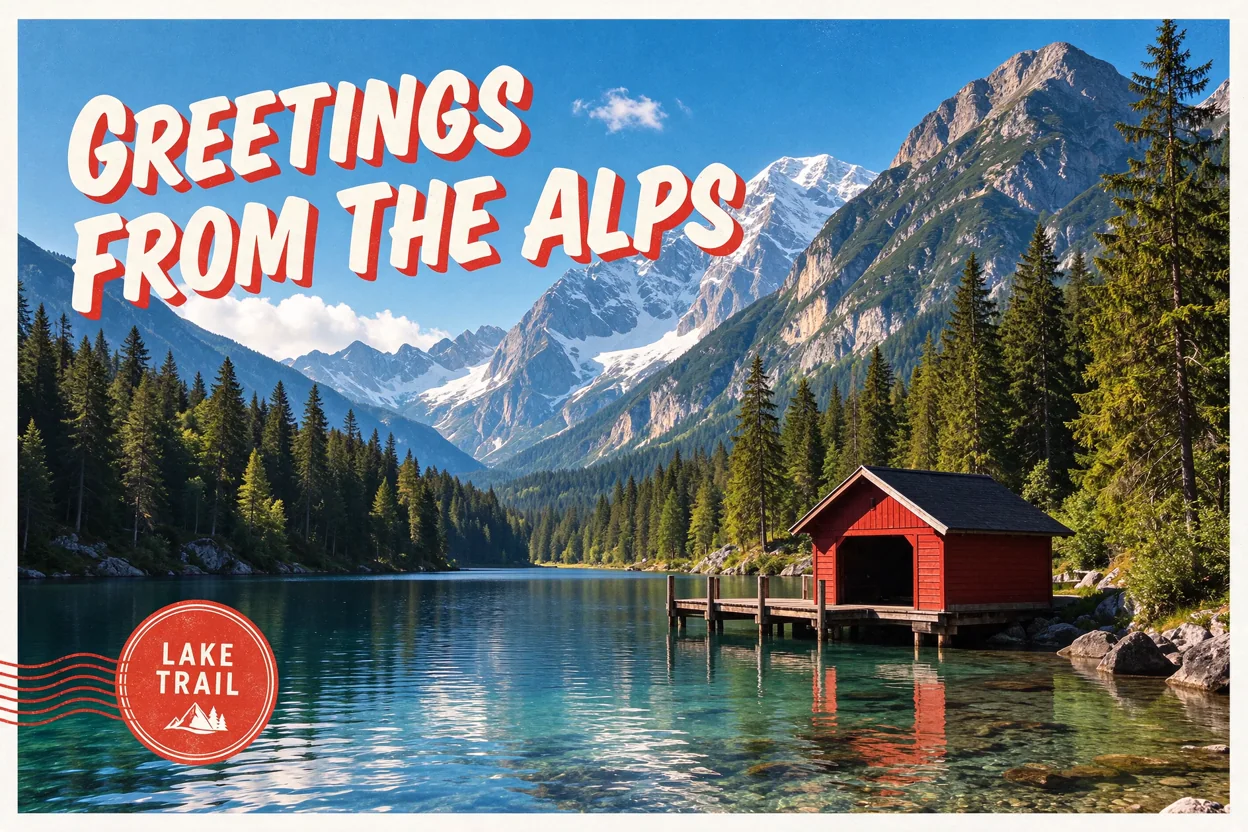

Upload one image and, if you like, name the elements to separate, such as the person, the logo or the headline. Turn on text separation to put recognized text on its own layers. Results arrive as a base image followed by transparent PNG layers.
You can go from an idea to a finished image in a few minutes. Follow these steps for each generation in the workspace above.
Select Text to Image for a new picture, Image Editing to change existing photos, or Layers to split an image into parts.
Describe the subject, setting, lighting and style. For editing, upload your reference images and say what should change and what should stay the same.
Pick the aspect ratio, resolution, background and format. The Generate button shows the exact credit cost for the settings you choose.
Results usually arrive in under a minute. Download PNG or JPEG files, or select Edit Again to send the result back in as a reference for the next round.
All three Seedream models remain available on Seedance 2.0. Pick Seedream 5.5 for repeated editing, transparent assets and layers; the earlier models stay useful for the looks you have already tuned.
| Feature | Seedream 5.5 | Seedream 5 Pro | Seedream 5 |
|---|---|---|---|
| Modes | Text to image, image editing, layers | Text to image, image editing | Text to image, image editing |
| Reference images | Up to 10 | Up to 10 | Up to 10 |
| Transparent PNG output | Yes | No | No |
| Layer decomposition | Yes | No | No |
| Output resolution | 1K, 1.5K or 2K | 1K or 2K | 2K or 4K |
Text to image and image editing use a fixed price per image: 1K and 1.5K images cost less than 2K, and each reference image adds a small amount. Layers holds credits for the maximum number of images you allow, then refunds the credits for any images the model does not return, so you only pay for the layers you receive. Every price is shown before you generate. Eligible new accounts can use starter credits to try Seedream 5.5 free; sign in to see your balance.
Seedream 5.5 suits work that needs clean assets, consistent subjects and readable text.
Generate transparent product cut-outs, then place them on seasonal backgrounds with image editing while the label and shape stay the same.
Write the headline into the prompt and get sharp lettering, then split the result into layers to adjust the text position or translate it.
Create a character once and reuse it as a reference across new poses, outfits and scenes for comics, games or brand content.
Turn an old flat graphic or a photo into editable layers instead of rebuilding it by hand, then refine it in Photoshop, Figma or any layer-based editor.
Remove objects, change the weather or lighting, or replace a background through several small edits that leave the rest of the photo untouched.
Generate isolated elements on a transparent background that are ready for apps, presentations, print-on-demand and messaging stickers.
Clear prompts give the most reliable results. These habits help in every mode.
Start with the subject and scene, then add style, lighting and camera details. When editing, state what must not change, such as the face, the logo or the framing.
Put any words that should appear in quotation marks and say where they go, for example a headline at the top and a price tag at the bottom right.
Seedream 5.5 holds unchanged areas well, so small focused requests give you more control than one long instruction that changes everything at once.
With several reference images, refer to them by order, for example "the woman in image 1" and "the jacket in image 2", and explain what each one contributes to the result.
A glass bottle of cold-brew coffee with a kraft-paper label that reads "MORNING ROAST", standing on a white marble counter, soft window light from the left, shallow depth of field, commercial product photography.
Keep the bottle, label and lighting from image 1 exactly as they are. Replace the marble counter with a wooden picnic table in a sunny park, and add a croissant on a small plate beside the bottle.
Answers to common questions about Seedream 5.5 on Seedance 2.0.
Seedream 5.5 is the newest Seedream image model. It generates images from text, edits images from up to ten references, creates transparent PNGs and separates an image into editable layers. It keeps unedited regions stable across many rounds of changes and renders small text more clearly than earlier versions.
Seedream 5.5 was released on November 9, 2026. It is available on Seedance 2.0 for text to image, image editing and layer decomposition.
Yes. Eligible new accounts can use starter credits to try Seedream 5.5 online without buying a plan first. Sign in to check your balance and compare it with the cost shown on the Generate button. Starting at 1K is the most economical way to test a prompt.
Open the workspace at the top of this page, choose Text to Image, Image Editing or Layers, add your prompt and any images, then pick the aspect ratio, resolution and background and select Generate. You need to sign in, and the credit cost is displayed before you submit.
Seedream 5.5 adds transparent PNG output, layer decomposition and a 1.5K resolution option, and it is designed to keep images stable across repeated edits. Seedream 5 Pro remains available for text to image and image editing if you prefer its results.
Upload one image, optionally name the elements you want separated and choose the maximum number of images. Seedream 5.5 returns a base image followed by transparent PNG layers. Credits for the maximum are held at submission, and credits for images the model does not return are refunded automatically.
Yes. In Text to Image or Image Editing, set the background to Transparent. The result is a PNG with a real alpha channel. JPEG does not support transparency, so the format switches to PNG automatically.
You can generate at 1K, 1.5K or 2K in 1:1, 4:3, 3:4, 16:9, 9:16, 2:3, 3:2 or 21:9. Image editing also offers Auto, which follows the framing of your reference image. Layer decomposition can keep the original size of your upload.
Use a sharp source image and describe one change at a time. Say what must stay the same, such as the face, product label or framing, and refer to multiple references by their order. If a detail drifts, go back to the previous result and make a smaller, more specific request instead of rewriting the whole prompt.
If a generation fails, the credits for that task are refunded to your balance automatically. The workspace shows the reason when one is available, for example a prompt that does not meet the content guidelines, so you can adjust it and try again.
Yes. You can write prompts in English, Chinese and many other languages. For text that must appear in the image, put the exact words in quotation marks.
Recent results appear in the history bar above the preview. All of your Seedream images, including Seedream 5.5, are also listed in your account history, where you can download them or open them again to keep editing.
Loading Seedream 5.5...
