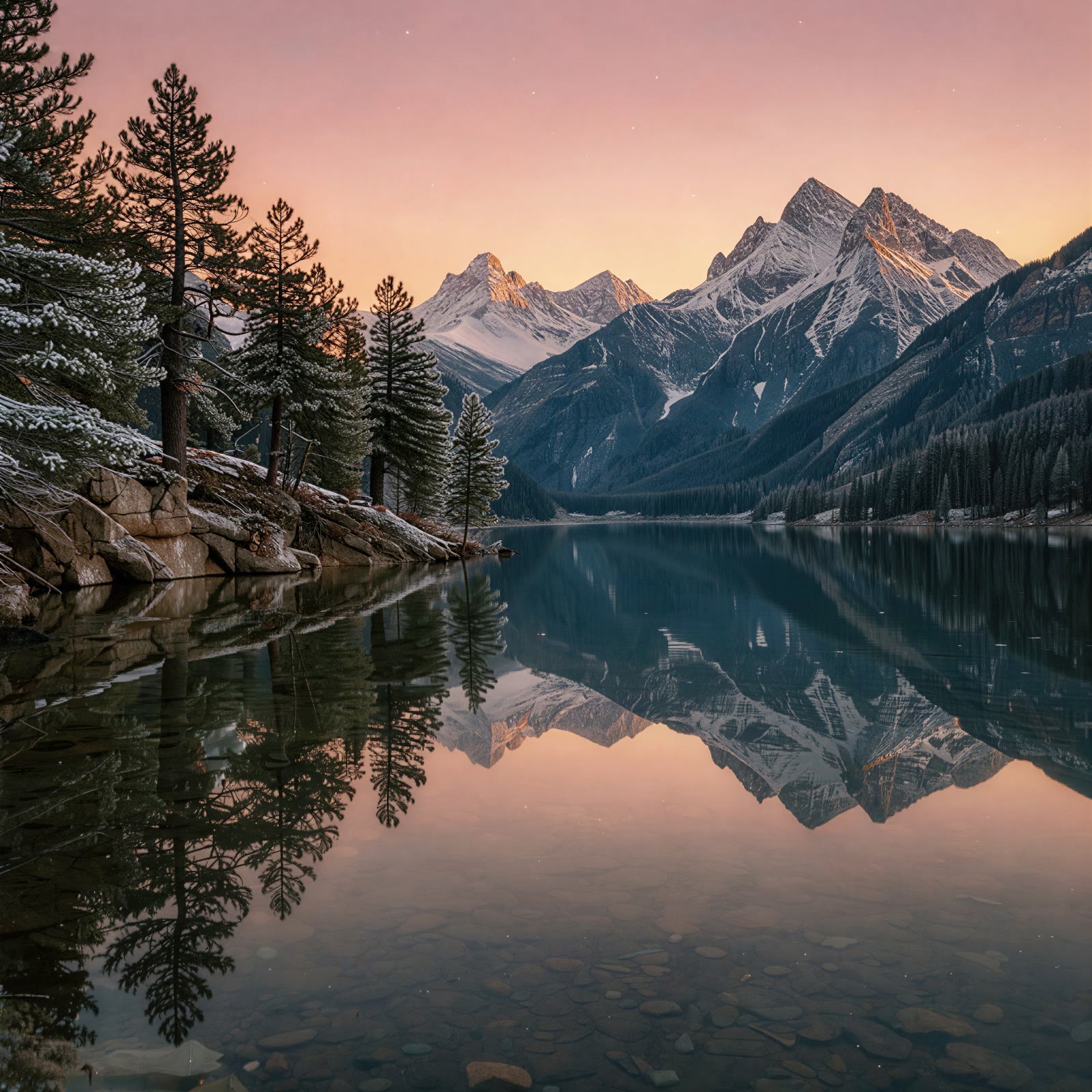
AI image upscaler: enlarge images online
Increase image resolution online with 2K, 4K or 8K output. Upload JPEG, PNG or WebP files, or add direct image links; batch mode accepts up to 16 images.
Choose JPEG, PNG or WebP output, check the credit total and download your results from history. Each image is processed and charged separately. Keep the originals and review text, faces and fine details before using the upscaled images.
How to upscale a photo or image
Prepare one image and decide on its intended use before selecting the output tier. The form lets you choose both resolution and file format. The example images are source files that can be selected into the form, so you can explore the workflow; they are not presented as proof of measured enhancement quality.
- 01
Upload one image or add its URL
Use a local JPEG, PNG or WebP file up to 20 MB, or a direct publicly accessible image URL. A gallery page or a private drive page is not the image file itself. Submit only material that you have permission to use.
- 02
Choose 2K, 4K or 8K output
Select the requested tier for your destination layout. A larger choice is not automatically the most useful one: consider the source quality, crop and final viewing size. Inspect the actual pixel dimensions of the downloaded output before using it in a delivery specification.
- 03
Select the output file format
JPEG, PNG and WebP are available choices. Choose a format that your editor or publishing system accepts, then review the file itself for the properties you need. Selecting PNG alone is not a promise of background removal or a transparent result.
- 04
Check the quote and inspect the result
Sign in and review the displayed credit quote before submitting. Once processing completes, compare the result with the original and download the image when it fits the project. Check small text, faces and line work as well as the overall impression.
4K image upscaler or 8K image upscaler: which tier fits?
The available targets are 2K, 4K and 8K. A 4K image upscale can suit a larger digital layout, while an 8K request may be considered when the production workflow needs a larger file. The right choice depends on the intended placement and the actual output dimensions. A resolution tier is a request setting, not evidence that new details will be accurate.
Upscale photos, artwork and product images with different checks
For a photo, examine faces, hair, fine texture and objects in the background. For a product image, check packaging text, logos, seams and the object’s silhouette. A plausible-looking detail may still differ from the source, so treat accuracy-sensitive details as a review task. This matters when the output will be used in a listing, presentation or branded creative.
AI image upscaling versus resizing, DPI and print size
Ordinary resizing changes pixel dimensions using an interpolation method. AI upscaling also processes visual patterns and may introduce interpreted detail. Neither operation proves that a missing real-world detail has been recovered exactly. Compare the result with a conventional resize when faithful shapes, small lettering or deliberately simple graphics matter more than a more textured appearance.
Choose JPEG, PNG or WebP for your next editing step
JPEG is widely used for photographs, PNG is useful in workflows that accept lossless raster files, and WebP is common for web delivery. Select a format supported by the next application that will use the image. Compression, color and transparency requirements should be checked in the actual output and your publishing workflow rather than inferred from the file extension alone.
AI image enhancer and photo enhancer: what the upscale improves
People often look for an image enhancer or a photo enhancer when a picture looks soft, small or pixelated. This AI image upscaler enhances one specific property: resolution. It creates a larger version of the image and processes edges and textures so the result can look cleaner at the new size than a basic stretch. It is not a full photo editor, so it does not promise color correction, background removal, object removal or retouching. When a photo needs those edits too, upscale the cleanest source first and continue in your usual editing software.
Try the AI image upscaler free with sign-up credits
New accounts with an eligible email address receive free starter credits after signing up. Each image upscale costs 6 credits, so the starter credits cover at least one free upscale to judge the result on your own material. The output tier and file format do not change the price. Once the free credits are used, additional upscales use purchased or plan credits, and the quote is always shown before you submit. It is a free way to try the upscaler, not an unlimited free image upscaler.
Upscale old photos, scans and low-resolution pictures
Scanned family photos, old digital camera files and images saved from messaging apps are often small or heavily compressed. For a scan, use the highest-resolution scan you can make and crop away the scanner bed before uploading. For a low-resolution picture, start from the original file rather than a screenshot of it, because each screenshot or re-save removes detail. Faces deserve the closest check: an upscale can make features look sharper but slightly different from the real person. Keep the original as the reference, and treat the larger copy as an enhanced version for viewing, sharing or printing at a modest size.
Upscale product photos, AI art and social media images
Online sellers upscale product photos when a marketplace or ad format asks for larger images. Check that labels, logos and stitching still match the real product before you publish the listing. Images made with an AI image generator are often produced at 1K or 2K; an upscale to 4K or 8K can prepare them for wallpapers, posters or a detailed crop. For social media, a 2K or 4K output is usually ample, because platforms resize uploads anyway. Choose the output tier for the final placement instead of always selecting the largest option.
Increase image resolution: pixels, 4K, 8K and print size
Resolution is measured in pixels. In common usage, 4K describes an image roughly 4,000 pixels across and 8K roughly 8,000 pixels across; check the downloaded file for its exact dimensions. Print size depends on those pixels and the PPI used for printing. At 300 PPI, 4,000 pixels print at about 13.3 inches (34 cm), and 8,000 pixels at about 26.7 inches (68 cm). Changing the DPI value stored in a file does not add pixels, while an upscale does. Confirm the real dimensions before sending a file to a printer.
How to upscale an image without losing quality
No upscale can add exact information that the source never captured, but you can avoid losing quality along the way. Start from the original file, not a compressed copy. Choose PNG or JPEG for the output when you plan to edit further, and WebP when the image goes straight to a website. Compare the result with the original at 100% zoom: look at edges, small text, skin, hair and repeating patterns. If a detail looks invented or wrong, use the original for that area or correct it in an image editor.
Image upscale resolutions, formats and credits
Each image task costs 6 credits at the current configured rate. The output tier and file format do not add a surcharge. Review the workspace quote before submission; processing requires account credits and is not an unlimited free service.
| Available formats | 2K | 4K | 8K |
|---|---|---|---|
| JPEG / PNG / WebP | 6 | 6 | 6 |
AI image upscaler questions
Can I upscale an image to 4K or 8K?
Yes. This workspace offers 2K, 4K and 8K output tiers for a single source image. Check the resulting file dimensions and visual detail before using it in a final layout. A larger output does not guarantee exact recovery of missing source information or suitability for every print specification.
Can I use this AI image upscaler for free?
Yes, you can try it free. New accounts with an eligible email receive free starter credits after signing up, enough for at least one image upscale at the current rate of 6 credits per image. Further upscales use account credits, and the quote is shown before you submit. Visit the plans page if you need more credits.
Can an AI image upscaler fix blurry text or faces perfectly?
No perfect reconstruction is promised. The result may interpret small text, facial features or textures differently from the source. Compare important details with the original before publishing. If exact text or geometry matters, work from the original document, vector asset or higher-quality source whenever one is available.
How do I make a JPEG or PNG higher resolution?
Upload one supported JPEG, PNG or WebP file up to 20 MB, choose the output tier and format, then review the quote after signing in. You can also use a direct image URL. Download and inspect the finished image dimensions; renaming a file or changing its DPI label alone does not add pixels.
Can I upscale pixel art without changing its style?
There is no guarantee of exact pixel-art preservation here. AI processing may alter intentional pixel edges, outlines or repeated patterns. Compare the result with a conventional resize if crisp blocks are part of the style. This workspace has no dedicated pixel-art mode and does not convert raster artwork into editable vector paths.
Can I upscale multiple photos at once?
Yes. Batch mode accepts up to 16 images, with a separate task and charge for each image. Upload JPEG, PNG or WebP files, or add direct image links; the Generate button shows the total credits.
How do I increase image resolution without losing quality?
Upload the original, uncompressed file, choose the output tier for your final use and select PNG or JPEG output if you will edit further. Then compare the result with the source at 100% zoom. An upscale adds pixels and can improve apparent sharpness, but it cannot recover detail that was never captured.
Can I upscale old or scanned photos?
Yes. Upload a JPEG, PNG or WebP scan up to 20 MB and choose 2K, 4K or 8K. Scan at the highest resolution available and crop the edges first. Check faces and handwriting carefully, because an AI upscale may render them slightly differently from the original photo.
Which output size should I choose for social media or print?
For social media and most websites, 2K or 4K is usually enough, because platforms resize images on upload. For posters, large prints or detailed crops, 4K or 8K gives you more pixels to work with. Calculate the print size from the actual pixel dimensions and your printer’s PPI.
Will the upscaled image look different from the original?
It should keep the same subject and composition, but AI upscaling can interpret fine texture, small text and facial details in its own way. That is why the comparison step matters. For documents, logos or line art where exact shapes count, compare the result with a conventional resize and use whichever is more faithful.
Continue your image and video workflow
Use the still image tool for an existing picture, the video upscaler for footage, or the long video generator for a new moving sequence.
Prepare a larger image for your next project
Choose the best source, select your output size and review the quote. Use the AI image upscaler to create a larger version, then inspect the details before adding it to your final design.