Generate images 50% faster than with GPT Image 2.5. Create images from text, edit reference photos and turn prompts into animated GIFs with GPT Image 2.6 (ChatGPT Image). Sign in to use starter credits if your account is eligible, then choose a model, format and resolution for your project.

Flare: Faster generation for quick iteration on posters, product shots and layouts.
Higher quality uses more credits and may take longer. Medium is the default; resolution controls image size separately.
By generating, you agree to our Content Policy.
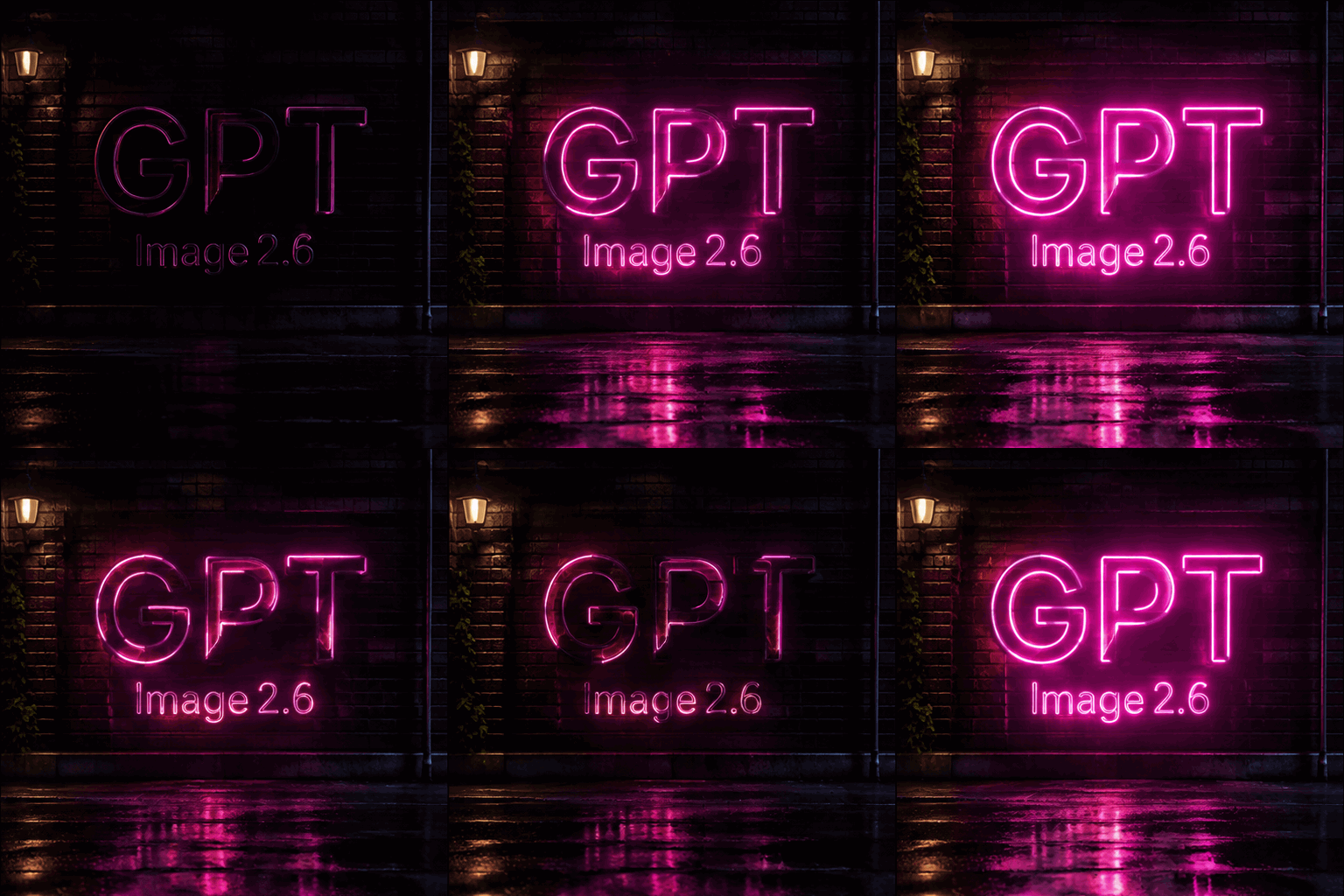
A seamless looping animation of a glowing pink neon sign on a dark brick wall at night. The sign shows exactly three capital letters, G then P then T, forming one three-letter word with no spaces, and below it the smaller word “Image 2.6”. The neon flickers on, glows, and reflects on the wet pavement below. Cinematic, high contrast.
GPT Image 2.6 builds on GPT Image 2.5. These are the features you can use in the Seedance 2.0 workspace.
Generate images 50% faster than with GPT Image 2.5. Flare is built for fast iteration, GPT Image 2.6 Sunburst for detailed work and consistent edits, and Lite is the lower-cost option at 1K.
Set the output format to GIF in text-to-image mode to turn a prompt into an animation, then choose 4, 9 or 16 frames and how long each frame stays on screen.
Choose a transparent background for product cut-outs, icons and stickers. The background setting applies at 1K and on Lite.
Add up to 16 reference images and describe what should stay and what should change. Details are better preserved, and people, pets and characters stay consistent across edits.
Alongside 1:1 and 16:9, use the new 5:4, 4:5, 2:1, 1:2, 9:21, 3:1 and 1:3 frames for banners, phone screens and panoramas. Lite offers eight common ratios.
Headlines, labels and signs come out clean and readable, and 2.6 builds stronger layouts for posters, product imagery and other professional visuals. Put the exact words in quotes.
Both models are available in the same workspace. Here is how they differ.
| Feature | GPT Image 2.5 | GPT Image 2.6 |
|---|---|---|
| Model variants | Flare, Sunburst | Flare, Sunburst, Lite |
| Reference images | Up to 16 | Up to 16 |
| Output resolution | 1K, 2K and 4K | 1K, 2K and 4K (Lite: 1K) |
| Aspect ratios | Auto plus 12 fixed ratios | Auto plus 15 fixed ratios |
| Output formats | PNG | PNG · JPEG · WebP · GIF · SVG |
| Animated GIF output | Not available | Text-to-image, 4 to 16 frames |
| Transparent background | Not available | At 1K and on Lite |
Flare and Sunburst offer Low, Medium, High, Very high and Maximum quality. Quality controls the rendering budget; resolution and aspect ratio control image dimensions. Start with Medium for everyday work, use Low for quick drafts, and compare higher settings when fine detail matters. Higher quality can take longer, so choose it for the result you need. The fixed credit quote includes your selected quality, output size and reference-image count. GIF pricing also accounts for the frame count. Review the price before generating: the displayed amount is charged once, with no additional usage charge after completion. Lite remains a separate 1K option.
Start with a clear creative task, then choose the input and output settings. The same workspace supports a new image from text, an edit guided by your own photos, or an animated GIF from a motion prompt.
Choose Flare for fast iteration, Sunburst for detailed work or Lite for lower-cost 1K output. Start with text-to-image when you want a new composition. For image-to-image, choose your model and add the source photos before describing the edit. Keep the same model while comparing prompt changes so you can judge what actually helped.
Describe the subject, composition, lighting and intended use. For edits, add up to 16 reference images and identify them by order. State what should stay, such as the product shape or camera angle, then describe the specific change. Begin with one clear adjustment before combining several changes in a later version.
Choose the aspect ratio for the destination, then set resolution, format and background. Review the credit cost before submitting. Check the result for readable text, subject consistency and clean edges before downloading. Results are saved to history, where you can select a previous task and reuse its prompt and settings for another iteration.
Turn a written scene into an animated GIF without assembling separate images in a timeline. Use text-to-image mode and select GIF as the output format. Flare, Sunburst and Lite support this workflow; Lite stays at 1K. A short, focused motion prompt is a useful starting point for stickers, reactions and small website animations.
Name the subject, the setting and what moves. Specify a fixed camera if the framing should stay still. For a loop, describe an action that can return to its starting position, such as a mascot waving or a light gently pulsing. Avoid asking a short animation to introduce several scenes or a complicated story.
Choose 4, 9 or 16 frames. Flare and Sunburst default to 9 frames; Lite also offers Auto. More frames add visual steps and can change the credit quote. Set the duration of each frame to control playback speed, and change one setting at a time.
Watch the entire animation and check the transition back to its first frame. Look for changes in the subject, flickering text and unwanted camera movement. If the motion is crowded, simplify the prompt. If it reads too quickly, increase the frame duration. Keep a version that works before experimenting with a more elaborate scene.
A small clay robot waves one hand beside a potted plant on a plain cream background. Fixed camera, gentle movement, consistent shape and lighting. The hand returns to its starting position at the end. No text or scene changes.
Standard supports text-to-image GIFs with 4, 9 or 16 frames. To animate a reference image, switch to Economy.
Common ways to put the model to work on Seedance 2.0.
Build posters, campaign graphics and product concepts from a written brief. Describe the layout as well as the subject: where the product sits, which area should remain open, and what text should appear. Put headlines in quotation marks. Choose a portrait ratio for a poster or a wide frame for a banner, then inspect spelling and alignment before publishing.
Create a mascot wave, a glowing sign or a small product animation directly from a prompt. Give the scene one main action and keep the camera still when you want an easy-to-read loop. Select GIF in text-to-image mode, choose the frame count and playback timing, then check the first and last frames for a distracting jump.
Use a reference photo to restyle a scene, replace a backdrop or change a product colour. Name the features that should stay consistent, including the shape, label, pose and lighting. For example, request a different background while keeping the product untouched. Compare each result with the original and return to that source if repeated edits introduce unwanted changes.
Create products, icons and stickers on a transparent background at 1K. Choose PNG for a straightforward transparent export, and describe the subject as isolated with clean edges. Check pale details and shadows against both light and dark backgrounds before placing the asset into a layout. Use a solid background when your final format is JPEG.
Small habits that help GPT Image 2.6 follow your intent.
Write signs, labels and headlines in quotation marks, for example a tag that reads "BATCH 07".
With several reference images, refer to them by order, such as "the product from image 1 on the background from image 2".
For edits, name the parts to keep, such as pose, camera angle and lighting, before you describe the change.
Answers to common questions about GPT Image 2.6 on Seedance 2.0.
GPT Image 2.6 is OpenAI's latest image generation and editing model. On Seedance 2.0 it comes in three versions: Flare for fast iteration, Sunburst for detailed work and Lite for lower-cost 1K images. Compared with GPT Image 2.5, it adds animated GIF output, transparent backgrounds and more aspect ratios, and keeps edits more consistent.
Open the GPT Image 2.6 workspace at the top of this page, choose Flare, Sunburst or Lite and write a prompt. To edit an image, switch to image-to-image and add up to 16 reference images. Then pick the aspect ratio, resolution and output format and select Generate. You need to sign in, and the credit cost is shown before you submit.
Flare is the faster model and suits quick iteration on posters, product shots and other layouts. Sunburst is built for detailed visual work and keeps details more consistent from one edit to the next. Lite generates at 1K with eight aspect ratios and a separate fixed price. All three accept text prompts and reference images.
Standard supports text-to-image GIFs with 4, 9 or 16 frames. To animate a reference image, switch to Economy.
API access is coming soon. On Seedance 2.0 you need no API key or code: you use GPT Image 2.6 directly in the image workspace and pay with your Seedance 2.0 credits.
Flare and Sunburst have a fixed quote based on quality, resolution, aspect ratio and reference-image count; GIF quotes also depend on frame count. The Generate button shows the amount before submission, and there is no additional charge after completion. Lite uses a fixed price per 1K image. Paid users (with a subscription or purchased credits) use half the credits of a free user on the Standard channel; the Economy channel is available to paid users only.
Both are available on Seedance 2.0 with up to 16 reference images and 1K to 4K output. GPT Image 2.6 adds the Lite version, animated GIF output, transparent backgrounds and three more aspect ratios, and it generates images 50% faster with more consistent edits. GPT Image 2.5 remains available if you prefer its results.
Standard: Text-to-image with Flare or Sunburst exports PNG, JPEG, WebP or an animated GIF, and image-to-image edits export PNG, JPEG or WebP. Lite exports PNG, plus GIF in text-to-image mode. Choose PNG when you need a transparent background. SVG is also available for Flare and Sunburst text-to-image. The page displays a PNG preview; downloading saves the original SVG.
Yes. Eligible new accounts can use starter credits to try GPT Image 2.6 without buying a plan first. Sign in to check your available balance and compare it with the cost shown on the Generate button. Credit eligibility and amounts vary, and higher resolutions use more credits. The trial is limited by your balance; further generations require enough credits. Starting at 1K helps you test a prompt before spending more on a larger image.
Use a clear source image and name the change you want. Specify what should remain, such as the face, product label, framing or lighting. With several references, identify each image by its order and explain its role. Compare the result against the source before making another edit. If details drift, return to the original image and make a more focused request.
Standard: Choose Flare or Sunburst, switch to image editing and add a reference image. Open Advanced settings above the Generate button and upload either a mask or a transparent PNG with annotations. Use one of these options at a time. Image quality and composition complexity can also be adjusted there.